
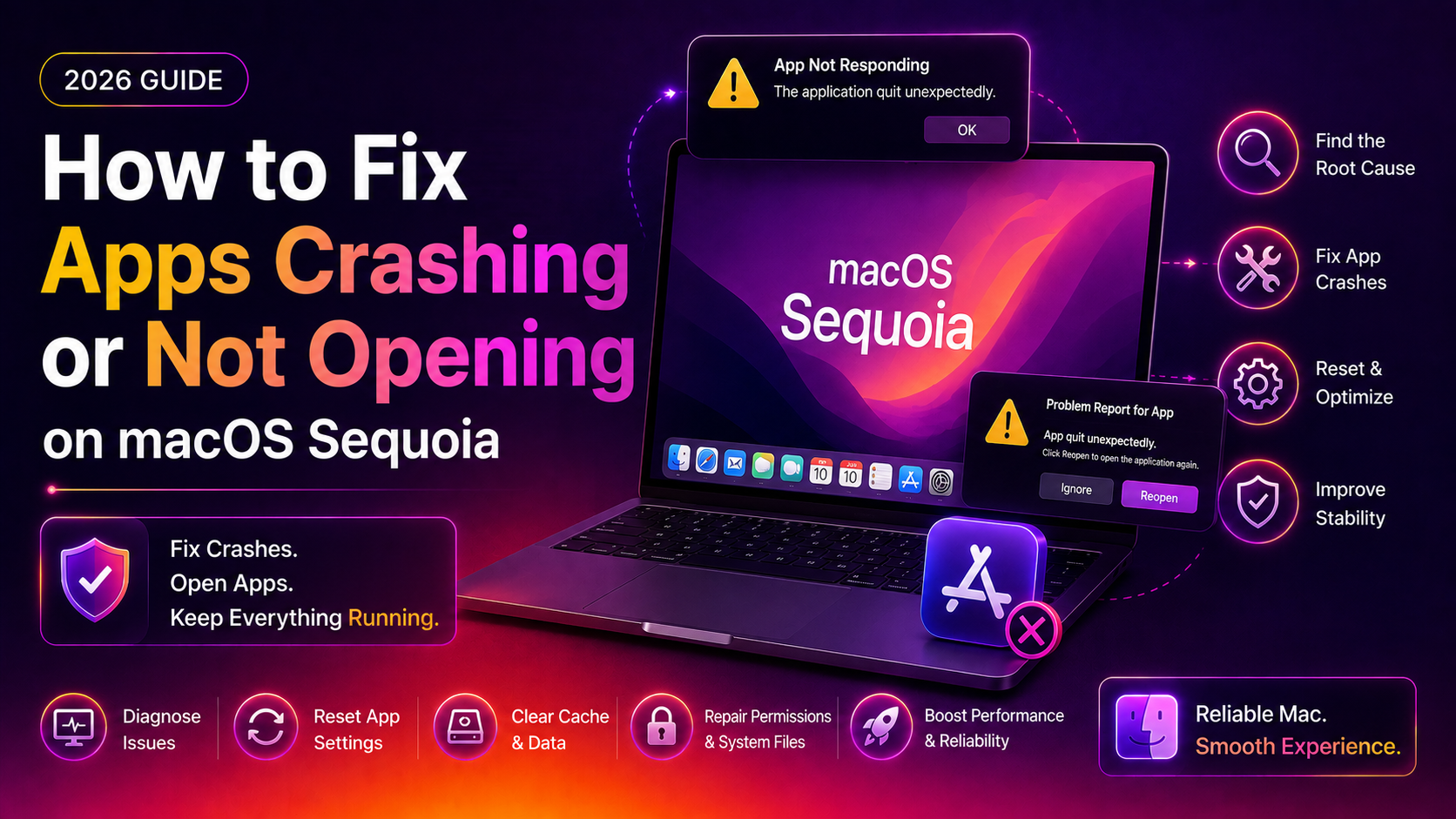
Why Are Apps Crashing or Not Opening on macOS Sequoia?
App crashes and launch failures are among the most common macOS Sequoia complaints in 2026. Whether you're seeing the spinning beachball, a "quit unexpectedly" dialog, or an app that simply refuses to open, the cause is almost always one of a handful of fixable problems:
- App incompatibility with macOS Sequoia 15.x
- Corrupt app cache or preferences file
- Insufficient RAM or storage causing resource exhaustion
- macOS Gatekeeper blocking unsigned or outdated apps
- Conflicting login items or system extensions
- Disk errors on the startup volume
Work through the fixes below in order — most people resolve the issue by step 3 or 4.
Fix 1: Force Quit and Relaunch the App
If an app freezes rather than crashing outright, force-quitting it clears any hung process:
- Press Command + Option + Esc
- Select the frozen app in the list
- Click Force Quit
- Wait 10 seconds, then reopen the app
Alternatively, right-click the app's Dock icon → hold Option → click Force Quit.
Fix 2: Update the App and macOS
Most app crashes on Sequoia are fixed within days of the macOS release as developers push compatibility updates:
- Open the App Store → Updates — install all pending app updates
- Go to System Settings → General → Software Update — install any available macOS updates
If the app came from outside the App Store, check the developer's website directly for a Sequoia-compatible version.
Fix 3: Clear the App's Cache and Preferences
A corrupt cache or preferences file is the most common cause of persistent crashes after the app was previously working fine:
- Open Finder → Go → Go to Folder (Shift + Command + G)
- Type
~/Library/Cachesand press Enter - Find the folder named after your app (e.g.,
com.adobe.Photoshop) and delete it - Now go to
~/Library/Preferences - Find the
.plistfile matching your app and delete it (e.g.,com.adobe.Photoshop.plist) - Restart your Mac and relaunch the app
Note: Deleting preferences resets the app to its defaults — you may need to reconfigure settings.
Fix 4: Free Up RAM Using Activity Monitor
When macOS runs low on memory, apps are forcibly terminated by the system. Check if this is the cause:
- Open Spotlight (Command + Space) → type Activity Monitor → press Enter
- Click the Memory tab
- Look at the Memory Pressure graph at the bottom — if it's red or orange, RAM is the issue
- Sort by Memory column and quit resource-heavy processes you don't need
If memory pressure is consistently high, close background apps, browser tabs, and consider adding RAM if your Mac supports it.
Fix 5: Reinstall the App
A corrupted app installation causes crashes that no amount of cache-clearing will fix. Properly uninstall and reinstall:
- Drag the app from Applications to the Trash
- Also delete its support files: go to
~/Library/Application Support/and delete the app's folder - Empty the Trash
- Reinstall from the App Store or the developer's website
For thorough removal, tools like AppCleaner find all associated files automatically.
Fix 6: Boot into Safe Mode to Isolate Conflicts
Safe Mode disables all third-party login items and system extensions. If your app opens successfully in Safe Mode, a login item or extension is causing the crash:
Intel Mac:
- Restart your Mac
- Immediately hold the Shift key until the login screen appears
- Log in — you'll see "Safe Boot" in the menu bar
Apple Silicon Mac (M1/M2/M3/M4):
- Shut down your Mac completely
- Hold the Power button until "Loading startup options" appears
- Select your startup disk, then hold Shift and click Continue in Safe Mode
If the app works in Safe Mode, go to System Settings → General → Login Items and disable items one by one to find the conflict.
Fix 7: Run First Aid on Your Startup Disk
Disk errors can cause random app crashes across many applications. Run First Aid to detect and repair them:
- Open Disk Utility (Applications → Utilities → Disk Utility)
- Select Macintosh HD in the left sidebar
- Click First Aid in the toolbar
- Click Run and wait for the scan to complete
If Disk Utility reports errors it can't repair, boot into macOS Recovery (Command + R on Intel, hold Power on Apple Silicon) and run First Aid from there.
Fix 8: Create a New User Account to Test
If an app crashes for your account but works for others, the problem is in your user profile rather than the system:
- Go to System Settings → Users & Groups
- Click the + button to add a new account
- Log into the new account and test the app
If it works, your original account has a corrupted preference or library file. Copy your data to the new account, or manually identify and remove the corrupt file.
If apps continue to crash after exhausting all methods above — especially after a macOS Sequoia update — CloudHouse Technologies provides expert Mac software support on a pay-per-ticket basis with no subscription required.
Frequently Asked Questions
Why do my apps keep crashing after updating to macOS Sequoia?
macOS Sequoia introduced new system APIs and security frameworks that some apps weren't updated to support. Check for app updates in the App Store and on the developer's website — most compatibility fixes arrive within days of a Sequoia update.
How do I find out why an app crashed on my Mac?
Open Console (Applications → Utilities → Console), select Crash Reports in the sidebar, and look for entries matching your app's name. The crash report shows the exact error and the process that caused it.
Is it safe to delete .plist preference files on macOS?
Yes — deleting a .plist file for an app is safe. The app recreates it on next launch with default settings. You may need to re-enter license information or reconfigure preferences.
My app opens and crashes immediately — what should I try first?
First try clearing the app's cache (~/Library/Caches/com.appname) and preferences (~/Library/Preferences/com.appname.plist). If that doesn't work, reinstall the app cleanly after removing its Application Support folder.
Can low disk space cause app crashes on macOS?
Yes. macOS needs free space to create virtual memory swap files. When the startup disk is nearly full (under 10–15 GB free), apps crash because the OS can't allocate additional memory. Free up space in System Settings → General → Storage.