
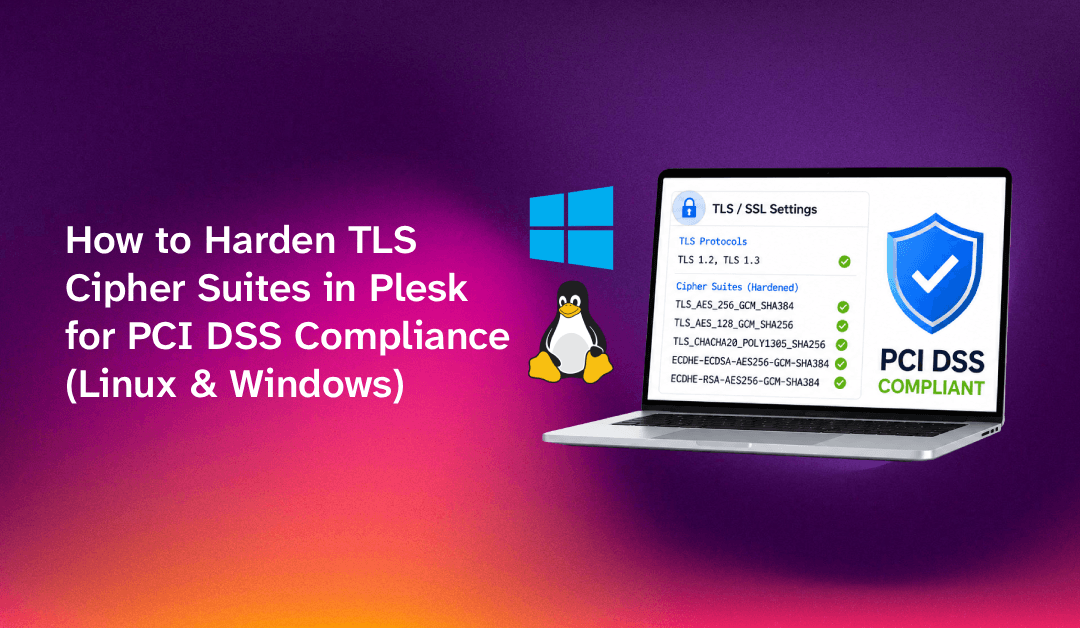
Plesk TLS cipher suite hardening is a critical security task for any hosting provider that needs to pass PCI DSS vulnerability scans. By default, Plesk may still advertise weak cipher suites and legacy TLS 1.0/1.1 protocols across its web server, mail stack, and control panel interface — every one of those counts as a finding in a QSA audit. This guide walks you through auditing, disabling weak protocols, and enforcing modern cipher suites across all Plesk services on both Linux and Windows, so your next scan comes back clean.
Why Weak TLS Ciphers Fail PCI DSS Scans on Plesk Servers
PCI DSS Requirement 4.2.1 (v4.0) mandates that cardholder data in transit must be protected using only strong cryptography. The PCI Security Standards Council defines "strong" as TLS 1.2 or TLS 1.3, with cipher suites that provide forward secrecy and authenticated encryption. Any server that still negotiates the following will fail a scan:
- TLS 1.0 or TLS 1.1 — deprecated by RFC 8996 and blocked by all major browsers
- RC4, DES, 3DES (SWEET32) — broken or practically exploitable ciphers
- Export-grade ciphers — 40-bit and 56-bit key lengths
- Anonymous (NULL) key-exchange ciphers — no server authentication
- CBC ciphers with SHA-1 HMAC — vulnerable to BEAST and LUCKY13 variants on TLS 1.2
- Static RSA key exchange — no forward secrecy; flagged as medium severity by most scanners
Out of the box, Plesk inherits the cipher list from the underlying OS OpenSSL or Schannel (Windows) configuration, then Plesk's own ssl.conf may override it. The problem is that Plesk's default profile is chosen for compatibility, not PCI compliance. Mail services (Postfix, Dovecot), FTP (ProFTPd), and the Plesk panel itself each run separate TLS stacks, so all four areas must be hardened independently.
Failing ciphers on even a single service port — for example, SMTPS on port 465 still accepting TLS 1.0 — is enough for a scanner like Tenable Nessus or Qualys to mark your server as non-compliant.
💡 None of these worked? Skip the guesswork.
Get Expert Help →Auditing Your Current TLS Configuration (SSL Labs & nmap)
Before making changes, document your starting point. Use these three tools:
1. Plesk Built-in Config Dump
SSH into your server as root and run:
plesk sbin sslmng --show-configThis prints the currently active protocols and cipher list for each managed service (nginx, Apache, Postfix, Dovecot, ProFTPd, and the Plesk panel). Make note of any service still listing TLSv1 or TLSv1.1 in its protocol column.
2. Qualys SSL Labs (Web Ports)
Visit https://www.ssllabs.com/ssltest/ and enter your server's hostname. An A+ grade is required for PCI DSS. Any grade below B means you have critical cipher or protocol issues. Pay attention to:
- Protocol Support — must show only TLS 1.2 and TLS 1.3
- Key Exchange — must show ECDHE or DHE (forward secrecy)
- Cipher Strength — no 3DES, RC4, or export suites
- Forward Secrecy — must be "Yes (with most browsers)"
3. nmap for Mail and FTP Ports
# Check SMTPS (port 465) and IMAPS (port 993)
nmap --script ssl-enum-ciphers -p 465,993,995,21,8443 your-server-ip
Look for any cipher entry rated F or C in the nmap output. Ciphers labelled DES-CBC3-SHA, RC4-SHA, or any EXPORT cipher are automatic PCI failures. Once you have your audit baseline, move to remediation.
plesk sbin sslmng --protocols 'TLSv1.2 TLSv1.3'This single command updates the nginx ssl_protocols directive in /etc/nginx/conf.d/ssl.conf and the Apache SSLProtocol directive in /etc/apache2/conf.d/ssl.conf (paths may vary by distro). Plesk then reloads both services automatically.
plesk sbin sslmng --show-config | grep -A3 "protocols"Confirm the output lists only TLSv1.2 TLSv1.3 for the web services.
Linux: Per-Service Protocol Changes (Mail, FTP, Panel)
plesk sbin sslmng --services postfix --protocols 'TLSv1.2 TLSv1.3'plesk sbin sslmng --services dovecot --protocols 'TLSv1.2 TLSv1.3'plesk sbin sslmng --services proftpd --protocols 'TLSv1.2 TLSv1.3'plesk sbin sslmng --services=sw-cp-server --protocols 'TLSv1.2 TLSv1.3'Windows: Via Registry (Schannel)
On Windows, TLS protocol negotiation is controlled by Schannel registry keys. Plesk for Windows provides the PCI Compliance Resolver (described in STEP 5), but you can also apply changes via PowerShell:
New-Item 'HKLM:\SYSTEM\CurrentControlSet\Control\SecurityProviders\SCHANNEL\Protocols\TLS 1.0\Server' -Force
New-ItemProperty -Path 'HKLM:\SYSTEM\CurrentControlSet\Control\SecurityProviders\SCHANNEL\Protocols\TLS 1.0\Server' -Name 'Enabled' -Value 0 -PropertyType 'DWord' -Force
New-ItemProperty -Path 'HKLM:\SYSTEM\CurrentControlSet\Control\SecurityProviders\SCHANNEL\Protocols\TLS 1.0\Server' -Name 'DisabledByDefault' -Value 1 -PropertyType 'DWord' -Force
Repeat the same pattern for TLS 1.1\Server. Reboot the Windows server after modifying Schannel keys — no reboot, no effect.
plesk sbin sslmng --custom --ciphers 'ECDHE-ECDSA-AES128-GCM-SHA256:ECDHE-RSA-AES128-GCM-SHA256:ECDHE-ECDSA-AES256-GCM-SHA384:ECDHE-RSA-AES256-GCM-SHA384:ECDHE-ECDSA-CHACHA20-POLY1305:ECDHE-RSA-CHACHA20-POLY1305:DHE-RSA-AES128-GCM-SHA256:DHE-RSA-AES256-GCM-SHA384'plesk sbin sslmng --services=dovecot --custom --ciphers 'ECDHE-ECDSA-AES128-GCM-SHA256:ECDHE-RSA-AES128-GCM-SHA256:ECDHE-ECDSA-AES256-GCM-SHA384:ECDHE-RSA-AES256-GCM-SHA384:ECDHE-ECDSA-CHACHA20-POLY1305:ECDHE-RSA-CHACHA20-POLY1305:DHE-RSA-AES128-GCM-SHA256:DHE-RSA-AES256-GCM-SHA384'plesk sbin sslmng --services=postfix --custom --ciphers 'ECDHE-ECDSA-AES128-GCM-SHA256:ECDHE-RSA-AES128-GCM-SHA256:ECDHE-ECDSA-AES256-GCM-SHA384:ECDHE-RSA-AES256-GCM-SHA384:ECDHE-ECDSA-CHACHA20-POLY1305:ECDHE-RSA-CHACHA20-POLY1305:DHE-RSA-AES128-GCM-SHA256:DHE-RSA-AES256-GCM-SHA384'# Generate a 2048-bit DH param file (do this once — takes ~30 seconds)
openssl dhparam -out /etc/ssl/dhparam.pem 2048
# Set it for nginx via Plesk's panel config
plesk bin server_pref -u -ssl-custom-dh-params /etc/ssl/dhparam.pemAfter setting the DH parameter, run service nginx reload to apply the change.
Windows Cipher Suite Order (Schannel)
On Windows Server, cipher suites are controlled through Group Policy or the IISCrypto tool (free, GUI-based). Navigate to Computer Configuration → Administrative Templates → Network → SSL Configuration Settings → SSL Cipher Suite Order and set the approved list. Alternatively, the Plesk PCI Compliance Resolver (next section) handles this automatically on Windows.
Log in to Plesk as admin → Tools & Settings → SSL/TLS Certificates → Manage → TLS versions and ciphers by Mozilla.
Plesk presents three Mozilla-curated profiles:
- Modern — TLS 1.3 only; breaks older mail clients and some CDNs. Use only if all clients are modern.
- Intermediate — TLS 1.2 + TLS 1.3, strong AEAD ciphers only. Recommended for PCI DSS.
- Old — includes TLS 1.0/1.1 for legacy compatibility. Will fail PCI scans — do not use.
Select Intermediate and click Apply. Plesk will update nginx, Apache, and the panel's own SSL stack in one operation.
Go to Tools & Settings → Security Policy → PCI DSS Compliance → Enable. This utility runs plesk sbin sslmng internally and additionally:
- Sets the DH parameter size to 2048 bits
- Disables SSL/TLS compression (CRIME vulnerability)
- Applies the PCI-approved cipher list to web, mail, and FTP services
- Disables weak signature algorithms (MD5, SHA-1) in certificate validation
After applying either method, rerun your SSL Labs scan and your nmap cipher check. Allow 2–3 minutes for Plesk to reload all services. Your SSL Labs score should now show A or A+, with forward secrecy enabled and no deprecated protocols listed.
Post-Hardening Checks
Run these validation commands after applying your changes to confirm nothing was missed:
# Confirm TLS version negotiation for HTTPS (port 443)
openssl s_client -connect your-domain.com:443 -tls1 2>&1 | grep "handshake failure"
openssl s_client -connect your-domain.com:443 -tls1_1 2>&1 | grep "handshake failure"
openssl s_client -connect your-domain.com:443 -tls1_2 2>&1 | grep "Cipher is"
openssl s_client -connect your-domain.com:443 -tls1_3 2>&1 | grep "Cipher is"

# Check SMTPS (port 465)
openssl s_client -connect your-domain.com:465 -tls1 -starttls smtp 2>&1 | grep "handshake failure"
TLS 1.0 and 1.1 attempts should return handshake failure. TLS 1.2 and 1.3 should show a negotiated cipher from your approved list.
For organisations managing multiple servers or needing ongoing compliance assurance, CloudHouse's server management service includes proactive TLS hardening, monthly security audits, and PCI DSS scan remediation as part of managed server plans.
FAQs
Does disabling TLS 1.0 and 1.1 in Plesk break anything?
For web traffic, disabling TLS 1.0 and 1.1 affects only very old clients — Windows XP with IE8 or Android 4.3 and below. All modern browsers (Chrome 70+, Firefox 78+, Safari 14+) have supported TLS 1.2 since 2018. For mail clients, disabling TLS 1.0/1.1 could affect Outlook 2010 and below or Thunderbird versions older than 68. Test your specific client fleet before pushing to production.
Will the Plesk PCI Compliance Resolver settings survive a Plesk upgrade?
Settings applied through the Plesk GUI (Security Policy → PCI DSS Compliance) are stored in the Plesk database and reapplied after upgrades. However, direct edits to /etc/nginx/conf.d/ssl.conf or Apache's ssl.conf made outside of Plesk's utilities will be overwritten. Always use plesk sbin sslmng or the GUI so your hardening survives updates.
My PCI scan still flags port 8443 (Plesk panel) even after hardening web and mail. Why?
The Plesk panel runs its own internal web server (sw-cp-server), which has a separate TLS configuration. You must explicitly harden it with plesk sbin sslmng --services=sw-cp-server --protocols 'TLSv1.2 TLSv1.3'. The PCI Compliance Resolver in the GUI does cover the panel, but if you applied changes only via CLI for web/mail, you may have missed this service.
How do I check which cipher suite was actually negotiated during a connection?
Use OpenSSL's s_client to test a specific cipher: openssl s_client -connect your-domain.com:443 -cipher 'DES-CBC3-SHA' 2>&1 | grep -E "Cipher|alert". If the connection returns handshake failure or no ciphers available, that cipher is successfully blocked. You can also use nmap --script ssl-enum-ciphers -p 443 your-domain.com to get a full enumeration with per-cipher ratings.
Does enabling TLS 1.3 require any special Plesk or OS configuration?
TLS 1.3 support in Apache requires Apache 2.4.37 or later, which is available on Ubuntu 20.04+, Debian 10+, AlmaLinux 8+, and Rocky Linux 8+. On older distros, nginx typically already supports TLS 1.3 even when running alongside an older Apache, because nginx handles the HTTPS termination in Plesk's default dual-stack setup. Check your Apache version with apache2 -v or httpd -v before including TLSv1.3 in the protocol list.
Hardening TLS cipher suites in Plesk is not a one-time task — cipher suite recommendations evolve as new vulnerabilities are discovered. Set a reminder to re-run your SSL Labs and nmap scans quarterly, review the Mozilla SSL Configuration Generator for updated profiles annually, and check Plesk's changelog after each major update for any changes to the default TLS configuration. Combined with automated PCI DSS scanning and proactive server management, your Plesk servers can maintain a clean compliance posture throughout the year.