
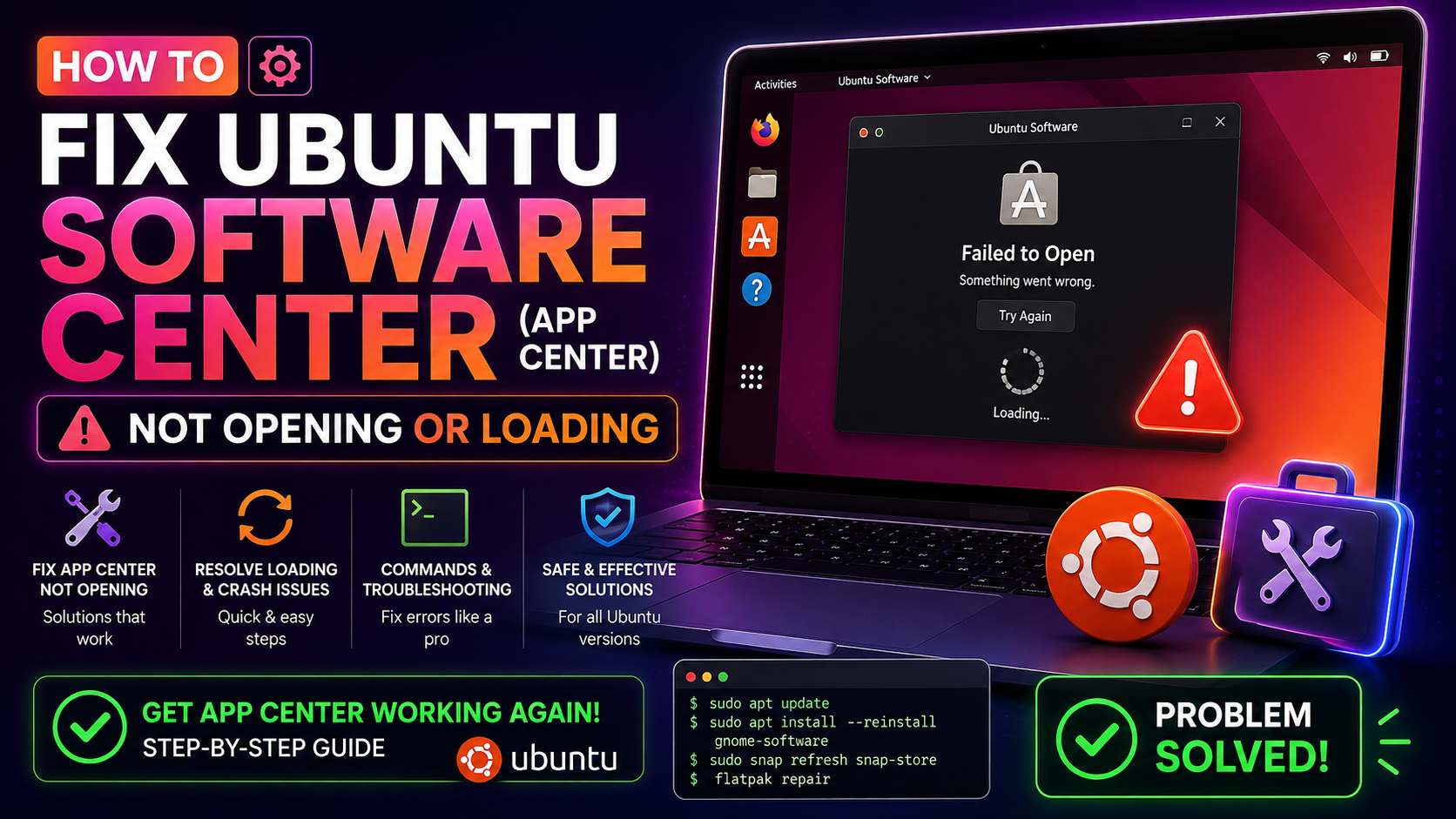
You click the Ubuntu App Center icon — and nothing happens. Or it flickers open for a second, then disappears. Or worse: it loads with a completely blank white screen and refuses to show any apps at all.
If you're on Ubuntu 24.04 LTS (Noble Numbat) or 26.04 LTS and the App Center won't open, you're not alone. The Flutter-based Ubuntu App Center (the successor to the old GNOME Software Center) ships as a snap package, which means it inherits all the quirks of the snapd ecosystem — stale lock files, cache corruption, and the occasional catch-22 where it can't update itself because it's already running.
This guide walks you through every fix, from a 10-second process kill to a full reinstall, so you can get back to installing and managing software without touching the terminal permanently.
Why the Ubuntu App Center Fails to Open in 2026 (Snap, Cache & Lock Conflicts)
Before diving into fixes, it helps to understand why this happens. The Ubuntu App Center is not a traditional APT package — it's a snap called snap-store, built on Flutter. That architecture introduces several failure modes that didn't exist with the older GNOME Software Centre:
The Most Common Causes
- Stale snapd lock files — If a previous App Center session or snap refresh was interrupted (system crash, power cut, forced kill), lock files at
/var/lib/snapd/lock/or/tmp/.snap-*can block snapd from starting new operations. - The self-update catch-22 — The App Center cannot update itself while it is running. If a new version is pending, snapd holds the snap in a "waiting" state, causing the UI to hang on launch.
- Corrupted Flutter or snap cache — The App Center caches package metadata and Flutter renderer assets in
~/.cache/snap-store/and~/.cache/ubuntu-desktop-bootstrap/. Corrupt entries cause a blank screen or freeze. - APT/dpkg lock conflicts — Ubuntu's automatic unattended-upgrades daemon runs in the background. If it holds the dpkg or apt lock, the App Center cannot query the package database and silently hangs.
- Wayland rendering bug (Flutter + NVIDIA/older Mesa) — On systems with certain GPU drivers, the Flutter renderer fails under Wayland, producing an immediate crash or white screen. Switching to Xorg is the workaround.
- snapd service not running — Rare, but if snapd crashed or was accidentally stopped, the App Center has nothing to connect to.
Quick Fix: Kill Stale Processes and Remove Lock Files
This resolves the majority of App Center launch failures in under two minutes.
Step 1 — Kill all running App Center and snap-store processes
killall snap-store
killall ubuntu-app-center
If those commands return "no process found," that's fine — it just means they aren't running as visible processes (they may be zombie states).
Step 2 — Refresh the snap-store snap itself
sudo snap refresh snap-storeIf you see "snap-store has running apps", force it with:
sudo snap refresh snap-store --ignore-runningStep 3 — Remove snap lock files
sudo rm -f /tmp/.snap-*
sudo rm -f /var/lib/snapd/lock/snap.snap-store.*
Step 4 — Release any APT/dpkg lock
If unattended-upgrades is running, wait for it to finish or kill it:
sudo systemctl stop unattended-upgrades
sudo rm -f /var/lib/dpkg/lock-frontend
sudo rm -f /var/lib/apt/lists/lock
sudo dpkg --configure -a
Step 5 — Relaunch
snap run snap-storeRunning it directly from the terminal lets you see any error messages that would normally be hidden. If you see output, note the error — it will guide the next steps below.
Clear the Snap and App Center Cache
If the App Center opens but shows a blank white screen, loads indefinitely, or shows no applications in the listings, the local metadata cache is almost certainly corrupt.
Clear the user-level App Center cache
rm -rf ~/.cache/snap-store
rm -rf ~/.cache/ubuntu-desktop-bootstrap
rm -rf ~/.local/share/snap-store
Clear the snapd system cache
sudo snap set system snapstate.backoff-sequence=""
sudo systemctl restart snapd
After clearing, launch the App Center again. On first launch it will take 15–30 seconds longer than usual to rebuild the package catalogue from scratch — this is normal.
If you're on Wayland and see a white screen
Log out of your current session. On the login screen, click the cog icon (bottom right), select "Ubuntu on Xorg", and log back in. Then try opening the App Center. If it works under Xorg but not Wayland, you're hitting the Flutter/GPU rendering bug — the workaround until a GPU driver or snap update fixes it is to use Xorg for App Center sessions, or install via terminal (see the section below).
Reinstall the Ubuntu App Center Snap
If killing processes and clearing the cache doesn't help, a full reinstall of the snap is the most reliable fix. This replaces all snap binaries and resets the snap's internal state.
Step 1 — Remove the existing snap
sudo snap remove snap-storeNote: this will also remove the App Center's local revision history. Your installed applications are not removed — only the GUI is being reinstalled.
Step 2 — Wait for snapd to settle
sudo snap wait system seed.loadedStep 3 — Reinstall
sudo snap install snap-storeStep 4 — Verify it launches
snap run snap-storeIf you see it listed in snap list but it still won't open, proceed to fixing underlying snapd issues in the next section.
snap list snap-storeFix Underlying APT and Snapd Errors That Block the App Center
Sometimes the App Center is fine — the problem is the infrastructure it depends on. Run these diagnostics to rule out deeper issues.
Check snapd service health
sudo systemctl status snapd
sudo systemctl restart snapd
If snapd shows failed or activating (auto-restart), check its logs:
journalctl -u snapd -n 50 --no-pagerCommon snapd errors and fixes:
- "cannot perform operation: mount --rbind /dev /tmp/snap.*/dev: Permission denied" — AppArmor profile issue. Fix:
sudo apparmor_parser -r /var/lib/snapd/apparmor/profiles/* - "snapd is busy (snap changes in progress)" — Run
snap changesto list pending operations. If one is stuck, abort it:sudo snap abort <change-id> - "cannot refresh snap-store: snap has running apps" — Already covered above with
--ignore-running.
Repair broken APT packages
sudo apt update --fix-missing
sudo apt install -f
sudo dpkg --configure -a
Check for broken snap revisions
snap list --all snap-storeIf you see multiple revisions stuck in "disabled" state, clean them up:
snap list --all | awk '/disabled/{print $1, $3}' | while read snapname revision; do sudo snap remove "$snapname" --revision="$revision"; doneAlternative: Install Apps via Terminal When App Center Is Broken
While you're fixing the App Center, you don't have to be blocked from installing software. Ubuntu supports three package managers from the terminal:
APT — for traditional Debian/Ubuntu packages
sudo apt update
sudo apt install package-name
Examples: sudo apt install vlc, sudo apt install gimp, sudo apt install firefox
Snap — for snap-packaged applications
sudo snap install package-nameExamples: sudo snap install code --classic, sudo snap install spotify, sudo snap install discord
Find the exact snap name with: snap find "search term"
Flatpak — if you've set up Flathub
sudo apt install flatpak gnome-software-plugin-flatpak
flatpak remote-add --if-not-exists flathub https://flathub.org/repo/flathub.flatpakrepo
flatpak install flathub com.spotify.Client
Flatpak gives you a completely independent software installation path that bypasses snapd entirely — useful as a long-term alternative if the App Center continues to give you trouble.
GNOME Software as an alternative GUI
If you prefer a graphical interface and can't get the App Center working, you can install the classic GNOME Software Centre alongside the App Center:
sudo apt install gnome-software gnome-software-plugin-flatpakThis installs a separate, APT-backed GUI software manager that works independently of snapd.
Still stuck after all of the above? CloudHouse Pay-Per-Ticket Support connects you with an Ubuntu expert who can diagnose your specific setup — GPU drivers, custom AppArmor profiles, Wayland compositor issues — and get the App Center working without a full reinstall.
Prevent App Center Crashes Going Forward
Once you have the App Center working again, a few habits will prevent this from happening repeatedly:
Let snap refreshes complete naturally
Avoid force-killing the App Center during an update. If you see the "Waiting for snap store to close" notification, leave it — it usually completes within 60 seconds. Killing it mid-update is the primary cause of the lock-file corruption described above.
Keep snapd updated
sudo snap refreshRun this occasionally from the terminal. It refreshes all installed snaps, including snap-store itself, in a controlled way without the UI freeze issue.
Monitor background update processes
snap changes
systemctl status unattended-upgrades
If you frequently see App Center hanging at launch, check whether unattended-upgrades is always running when you try to open it. Consider scheduling unattended upgrades for off-hours:
sudo dpkg-reconfigure unattended-upgradesGPU driver maintenance
If you're using NVIDIA proprietary drivers, keep them updated via Software & Updates → Additional Drivers. Outdated NVIDIA drivers are the most common cause of the Flutter white-screen crash on Wayland.
sudo ubuntu-drivers autoinstallPeriodic snap cache cleanup
Add this to a monthly cron job or run it manually every few weeks to prevent cache bloat:
rm -rf ~/.cache/snap-store
sudo journalctl --vacuum-time=30d
FAQ
Why does Ubuntu App Center not open?
The Ubuntu App Center (a Flutter-based snap) often fails to open due to stale snap lock files, corrupted cache, or snapd synchronisation issues. Killing the process, removing lock files, and clearing the snap cache usually resolves this. Run snap run snap-store from terminal to see the exact error message for further diagnosis.
How do I reset the Ubuntu Software Center?
Run sudo snap remove snap-store && sudo snap install snap-store to fully reinstall it. Also clear the cache beforehand with: rm -rf ~/.cache/snap-store ~/.local/share/snap-store. This replaces all snap binaries and resets internal state without affecting your installed applications.
Ubuntu App Center shows blank screen — how to fix?
A blank screen usually means either corrupted metadata cache or a Flutter rendering failure on your GPU/display server. First try: rm -rf ~/.cache/snap-store && sudo snap refresh snap-store. If using Wayland, log out, select "Ubuntu on Xorg" from the login screen cog menu, and try again — this resolves the Flutter/NVIDIA rendering crash.
Can I install apps without the Ubuntu App Center?
Yes. Use the terminal: sudo apt install package-name for APT packages, sudo snap install package-name for snaps, or install GNOME Software as an alternative GUI with sudo apt install gnome-software. You can also add Flatpak/Flathub support for a fully snap-independent software source.
How do I fix 'snap lock' errors on Ubuntu?
Remove the lock files with: sudo rm -f /var/lib/dpkg/lock-frontend && sudo rm -f /var/lib/apt/lists/lock && sudo dpkg --configure -a. Then restart snapd: sudo systemctl restart snapd. If snap changes are stuck in progress, list them with snap changes and abort the stuck one with sudo snap abort <change-id>.