
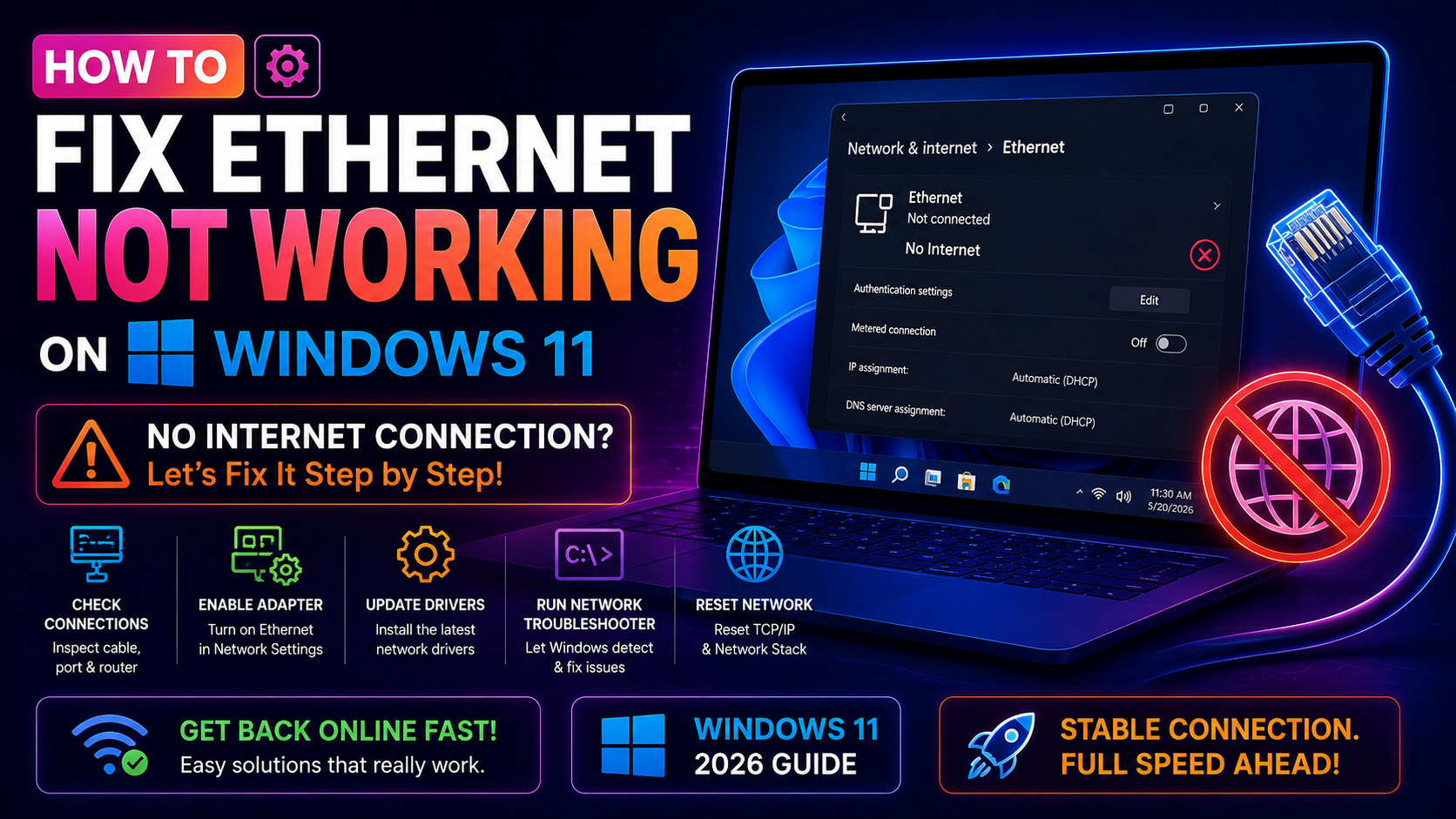
Why Is Ethernet Not Working on Windows 11? (Common Causes in 2026)
If your wired connection has suddenly stopped working on Windows 11, you are not alone. Thousands of users in 2026 have reported Ethernet going dead after routine Windows Update patches — most notably KB5066835 (Windows 11 25H2) and KB5065789 (Windows 11 24H2). Before diving into fixes, it helps to understand what goes wrong:
- Corrupted or outdated network adapter driver — Windows Update sometimes replaces a working driver with an incompatible version.
- Broken TCP/IP or Winsock stack — A failed update or malware scan can corrupt core networking components.
- Disabled Ethernet adapter — The adapter may have been disabled in Device Manager without you knowing.
- Large Send Offload (LSO) conflict — Some adapters behave erratically when LSO is enabled alongside certain driver builds.
- Physical layer failure — A faulty cable, damaged RJ45 port, or dead router switch port can mimic a software problem.
- Automatic IP / DNS misconfiguration — DHCP may fail to assign an address, leaving you with an APIPA 169.x.x.x address.
The good news: every one of these is fixable. Work through the steps below from top to bottom — most users resolve the issue by Fix 3.
Quick Physical Checks Before You Troubleshoot Software
Skipping the physical layer is the single most common mistake. Before touching any settings, do the following:
- Unplug the Ethernet cable from both the PC and the router, wait 10 seconds, and firmly reseat it. The RJ45 clip should click into place.
- Look at the LED indicator on the Ethernet port. A solid or blinking amber/green light means the link is detected at the hardware level. No light = physical problem (cable, port, or NIC).
- Swap to a different cable if available. Cat 5e or Cat 6 cables can develop internal breaks that are invisible from the outside.
- Try a different port on your router or switch. A single port can fail while the rest work fine.
- Test the same cable on another device (laptop, game console) to confirm it works.
If the LED lights up but Windows still shows "No Internet" or "Unidentified Network", the issue is software. Continue to the fixes below.
Fix 1: Restart the Network Adapter in Device Manager
A simple disable/enable cycle clears temporary driver faults and forces Windows to re-initialise the adapter.
- Press Windows + X and click Device Manager.
- Expand Network adapters.
- Right-click your Ethernet adapter (e.g., "Intel Ethernet Connection I219-V" or "Realtek PCIe GbE Family Controller").
- Click Disable device, wait 5 seconds, then right-click again and choose Enable device.
- If the adapter is missing entirely, click Action > Scan for hardware changes.
Check your network status in the system tray. If Ethernet is still not working, proceed to Fix 2.
Fix 2: Update or Roll Back the Ethernet Driver
Option A — Update the driver
- In Device Manager, right-click your Ethernet adapter and select Update driver.
- Choose Search automatically for drivers. Windows will check Windows Update for the latest driver.
- Alternatively, visit your motherboard or laptop manufacturer's support page (ASUS, Dell, HP, Lenovo, MSI, Gigabyte) and download the latest LAN driver manually. Run the installer, then reboot.
Option B — Roll back the driver (if Ethernet broke after an update)
- In Device Manager, right-click the Ethernet adapter and click Properties.
- Go to the Driver tab and click Roll Back Driver.
- Select the reason "Previous version of driver worked better" and confirm.
- Restart your PC.
If Roll Back Driver is greyed out, Windows does not have a previous version stored. In that case, download an older driver from the manufacturer's website and install it manually.
Fix 3: Reset the Network Stack with Netsh and IPConfig Commands
This is the most effective software fix for Ethernet not working on Windows 11. It resets the Winsock catalogue, TCP/IP stack, and DNS resolver cache — all in one sequence.
- Press Windows, type cmd, right-click Command Prompt, and select Run as administrator.
- Run the following commands one at a time, pressing Enter after each:
netsh winsock reset
netsh int ip reset
ipconfig /release
ipconfig /flushdns
ipconfig /renew- Restart your PC after all five commands complete.
After rebooting, Windows will rebuild the TCP/IP stack from scratch. This resolves the majority of "Ethernet connected but no internet" cases caused by corrupt Windows updates.
What each command does
netsh winsock reset— Restores the Windows Sockets API to a clean state.netsh int ip reset— Rewrites the TCP/IP registry keys to default values.ipconfig /release— Drops the current IP address lease from DHCP.ipconfig /flushdns— Clears the local DNS resolver cache.ipconfig /renew— Requests a fresh IP address from the DHCP server.
Fix 4: Disable Large Send Offload (LSO) in Adapter Settings
Large Send Offload is a performance feature that lets the network adapter handle packet segmentation instead of the CPU. On some Windows 11 driver builds it causes instability, intermittent drops, or complete loss of connectivity.
- Open Device Manager and double-click your Ethernet adapter to open Properties.
- Click the Advanced tab.
- In the Property list, scroll down and select Large Send Offload V2 (IPv4). Set the Value to Disabled.
- Repeat for Large Send Offload V2 (IPv6) and set it to Disabled.
- Click OK and test your connection.
Alternatively, you can disable LSO via PowerShell (run as Administrator):
Disable-NetAdapterLso -Name "Ethernet" -IncludeHiddenReplace "Ethernet" with the exact adapter name shown in Settings > Network & Internet > Advanced network settings.
Fix 5: Use Windows 11 Network Reset to Restore Default Settings
Network Reset is a nuclear option that reinstalls all network adapters and resets every networking component (Winsock, TCP/IP, DNS, VPN clients, virtual adapters) to factory defaults. Use it if the previous fixes have not worked.
- Press Windows + I to open Settings.
- Navigate to Network & Internet > Advanced network settings.
- Scroll down and click Network reset.
- Click Reset now and confirm.
- Windows will sign you out and restart automatically.
Important: After a Network Reset you will need to reconnect to Wi-Fi networks and reinstall any VPN or virtual network software (e.g., Cisco AnyConnect, TAP adapters). Your saved Wi-Fi passwords are removed. Ethernet connections that rely purely on DHCP will typically reconnect automatically.
Fix 6: Uninstall the Problematic Windows Update (KB5066835 / KB5065789)
If your Ethernet stopped working immediately after a Windows Update, the patch itself may be the culprit. Both KB5066835 (25H2) and KB5065789 (24H2) have been widely reported in 2026 to break Ethernet and Wi-Fi adapters.
How to uninstall a specific Windows Update
- Press Windows + I, go to Windows Update > Update history.
- Click Uninstall updates at the top of the page.
- Find the problematic KB (e.g., KB5066835), click on it, and select Uninstall.
- Restart your PC and verify Ethernet is working again.
Using Command Prompt to uninstall (faster)
wusa /uninstall /kb:5066835 /quiet /norestartRun as Administrator, then restart manually. Replace 5066835 with the KB number that applies to your Windows version.
Pause updates to prevent reinstallation
After uninstalling, go to Windows Update > Pause updates and pause for 1–4 weeks. Microsoft typically ships a fixed cumulative update within that window.
When to Call a Professional for Persistent Ethernet Issues
If you have worked through all six fixes above and Ethernet is still not working, the problem may be beyond standard troubleshooting:
- Failed NIC (Network Interface Card) — The onboard Ethernet controller has a hardware defect. A USB 3.0 to Gigabit Ethernet adapter (around $15–$25) is a fast, cost-effective workaround.
- Motherboard damage — Power surges, ESD, or liquid damage can permanently destroy the LAN port circuitry.
- Deep OS corruption — Malware or a cascading update failure may require an in-place Windows 11 repair install or a clean reinstall.
- Corporate / managed device policies — Group Policy or MDM profiles can block Ethernet access, requiring admin-level intervention.
For any of these scenarios, professional diagnosis saves significant time and prevents accidental data loss. CloudHouse Pay-Per-Ticket Support connects you with certified Windows technicians who can remotely diagnose driver, NIC, and OS-level Ethernet failures — no subscription required, pay only for what you need.
Frequently Asked Questions
Why is my Ethernet not working on Windows 11?
Common causes include a corrupted or outdated network adapter driver, a Windows 11 update that reset network settings (especially KB5066835), a disabled adapter in Device Manager, or a faulty cable or router port.
How do I reset Ethernet settings on Windows 11?
Go to Settings > Network & Internet > Advanced network settings > Network reset. This reinstalls all network adapters and resets networking components to defaults. You will need to reconnect to Wi-Fi networks afterward.
How do I fix "Ethernet cable not detected" on Windows 11?
First check the physical cable and router port. Then in Device Manager, right-click your Ethernet adapter and choose Enable (if disabled) or Update driver. If the adapter is missing entirely, click Action > Scan for hardware changes.
Can a Windows 11 update break Ethernet?
Yes. Several Windows 11 updates — including KB5066835 and KB5065789 for 24H2/25H2 — have caused Ethernet adapters to go missing or stop working. You can uninstall the problematic update via Settings > Windows Update > Update history > Uninstall updates.
What netsh commands fix Ethernet on Windows 11?
Run these in an elevated Command Prompt: netsh int ip reset, netsh winsock reset, ipconfig /flushdns, ipconfig /release, ipconfig /renew — then restart your PC. This resets the TCP/IP stack and often resolves Ethernet connectivity issues.